


Connect to School WiFi with Your Student Login
To connect to school or college WiFi, pick your school’s network in your phone or laptop’s Wi-Fi list (often eduroam, or one named after the school) and sign in with your student username and password. Guest networks open a sign-in page in the browser instead, and devices without a browser, like game consoles and smart TVs, usually need to be registered with your school’s IT team first.
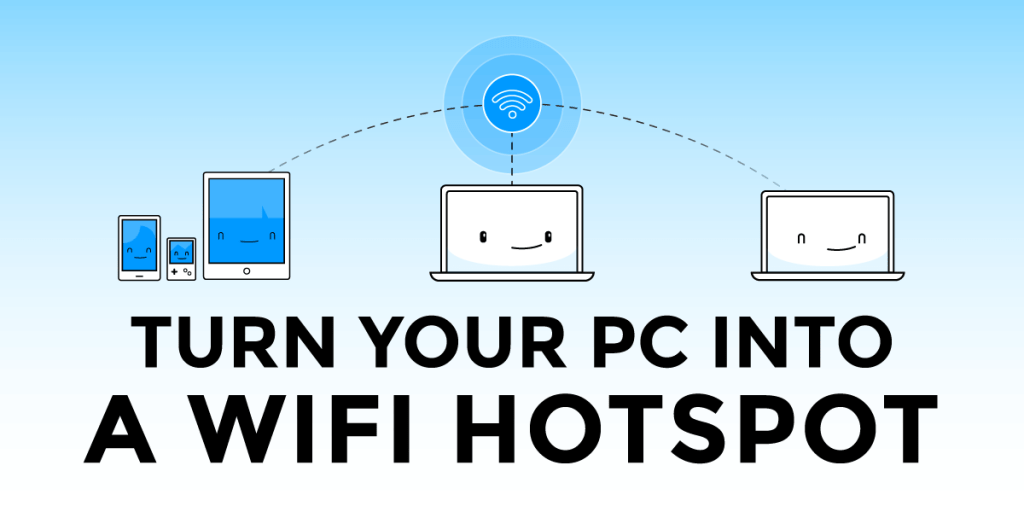
For your own devices that can’t sign in, and where your school allows it, Download Connectify Hotspot free to share your laptop’s connection with them. The steps for each case are below.
How School and College WiFi Networks Work
Most campuses run two or three networks side by side:
- The main secure network. This is usually eduroam or a network with the school’s name. It uses WPA2-Enterprise (or the newer WPA3-Enterprise), which means you log in with your own school account instead of a shared Wi-Fi password. On eduroam your username is usually your full school email address, and the same login works at other eduroam campuses.
- A guest network. No password to join, but the browser shows a sign-in page where you accept the terms or log in.
- A device network or registration page. Consoles, smart TVs, printers and streaming sticks can’t do an enterprise login, so many schools let you register them with IT by their Wi-Fi (MAC) address, or put them on a separate network.
Your IT help page lists the exact settings. Many schools also point you to the geteduroam app, which sets everything up for you.
Connecting to School WiFi on Your Phone
iPhone: go to Settings → Wi-Fi, tap the school network, enter your username and password, and tap Trust when the certificate appears.
Android: go to Settings → Network & internet → Internet (or Wi-Fi) and tap the school network. Most schools use EAP method PEAP with phase 2 authentication MSCHAPV2. Set CA certificate to Use system certificates, type the domain your IT page gives, then your username (identity) and password.
If you join a guest network and nothing loads, open your browser. The sign-in page should appear.
Connecting to School WiFi on Your Laptop
Windows: click the Wi-Fi icon on the taskbar, pick the school network, click Connect and enter your username and password. If Windows asks whether to continue connecting, check the certificate details match your school and click Connect.
Mac: click the Wi-Fi icon in the menu bar, pick the school network, enter your username and password, and accept the certificate. Your Mac may ask for its own login password to save it.
Chromebooks work the same way: choose the network, set EAP to PEAP if asked, and enter your school login.
Getting Consoles, Smart TVs and Other Devices Online
Register the device with your school first. Find its Wi-Fi or MAC address in its network settings and enter it on the school’s device registration page, or ask the IT help desk. This is the supported route and it keeps the device online without your laptop.
If your school doesn’t offer registration, and its network rules allow personal hotspots, your Windows laptop can share its connection with your own devices. Check the rules first: some schools don’t allow hotspots or limit how many devices each student can use, and those limits still apply when you share.
How to Share Your Laptop’s School WiFi in 5 Steps
First connect your laptop to the school WiFi and sign in. Then share it:
- Download and install Connectify Hotspot on your 64-bit Windows 10 or 11 PC.
- Open it and choose Wi-Fi hotspot.
- Under Internet to share, pick the connection you want to share: Wi-Fi, Ethernet, a VPN or a phone plugged in with USB.
- Set a password. Turn on Block ads if you want lighter pages on every device.
- Click Start hotspot. Devices join by scanning the QR code on the Hotspot screen, or with the network name and password, like any other Wi-Fi network.
Connectify Hotspot 27 runs on 64-bit Windows 10 (version 1703 or later) and Windows 11. On a Windows 7 or 8 PC, use Connectify Hotspot 2021 instead: see our Windows 7 and Windows 8 guides.

Setup · about two minutes
Get Connectify Hotspot running on your Windows PC
Three steps, no command prompt, no netsh commands to remember.
-
Install and open Connectify Hotspot
Run the installer and let the install finish. Connectify Hotspot opens on its own.
-
Pick what you are sharing
Choose the connection your Windows PC is already using, then set a hotspot name and password.
-
Start Hotspot
Your phone, tablet or console now sees the network name you just typed. Connect to that network like any other Wi-Fi.
Available for Windows 10 and 11
Useful Settings for a Dorm Room
- Set a console’s gaming mode in the Clients screen of the free version. UPnP is on by default.
- See each device’s data use and switch internet access off for any one device, free.
- Block ads on every device on the hotspot, including ads inside iPhone apps.
- Weak signal in your room? See our tips to fix dorm room WiFi.
Free, PRO or MAX
Which version of Connectify Hotspot you need
Hotspot Lite, the free edition of Connectify Hotspot, covers the setup in this guide. It runs in timed sessions: when one ends, start it again with one click.
Recommended: MAX adds Wi-Fi repeater mode and Bridged mode, for extending your Wi-Fi or putting consoles and casting devices on your home network.
For 64-bit Windows 10 and 11