


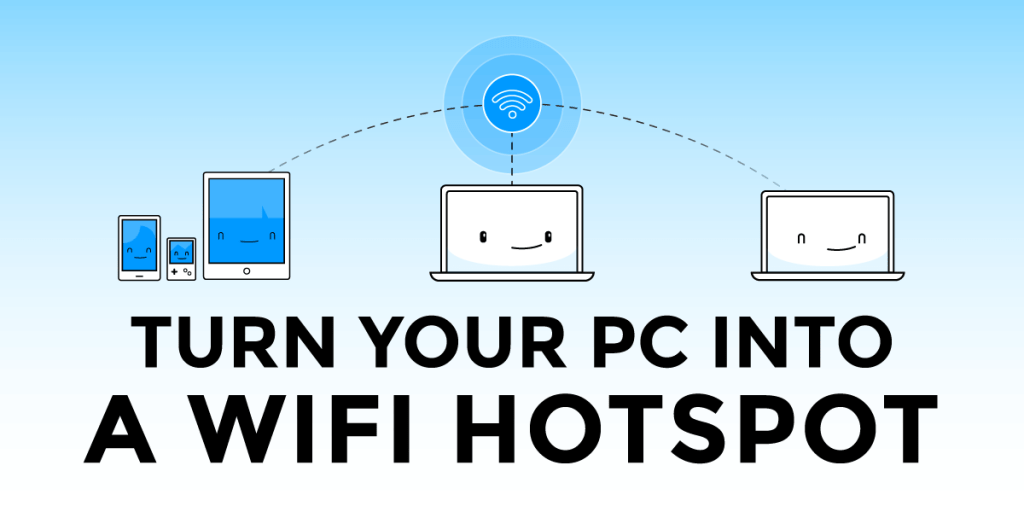
Your Phone’s Hotspot Won’t Work at Cruising Altitude
A phone hotspot doesn’t work on a plane: it shares your mobile data, and at cruising altitude your phone has no cell signal to share. Most airlines also ask you to keep phones in airplane mode, so the way to get online in flight is the plane’s own Wi-Fi.
Below is how to connect to inflight Wi-Fi on any device. If you also want your laptop to share one inflight sign-in with your own devices, where the plan allows it, Download Connectify Hotspot free before you fly.
Why Phone Hotspots and MiFi Devices Fail on Planes
Cell towers point their signal along the ground. Up at 35,000 feet, a plane is far above their range, so your phone shows no signal. A portable MiFi or travel hotspot has the same problem, because it also runs on mobile data.
A few long-haul airlines run their own onboard mobile service, which works like international roaming and is billed by your carrier at roaming rates. On most flights, though, inflight Wi-Fi is the only internet you’ll have.
How to Connect to Inflight WiFi
- Leave airplane mode on and turn Wi-Fi back on. Phones, tablets and laptops all allow this.
- Join the Wi-Fi network named after the airline or its internet provider. The seatback card or the seat screen usually tells you which one.
- Open your browser. The airline’s page should appear. If it doesn’t, type the address shown on the card.
- Pick a plan. Many airlines offer free messaging, some offer free Wi-Fi to loyalty members, and the rest sell passes by the hour or by the flight.
- Sign in or pay, and you’re online.
On many planes the Wi-Fi only switches on after takeoff, once the plane is above about 10,000 feet. The connection is shared by everyone on board, so download films and big files before you leave.
Sharing an Inflight Plan with Your Own Devices Depends on the Plan
Many inflight plans are sold per device: one purchase covers one phone or one laptop. Read the plan’s terms before you share. If the plan allows more than one device, or isn’t tied to a single one, you can sign in once on your Windows laptop and share that connection with your own phone and tablet using Connectify Hotspot.
This also helps devices that struggle with the airline’s sign-in page, like an e-reader or a handheld console. They join the laptop’s Wi-Fi network with a password you set and don’t need to open the page at all.

How to Share an Inflight WiFi Sign-In from Your Laptop in 5 Steps
First connect your laptop to the inflight Wi-Fi, pick a plan that allows it and sign in on the laptop’s browser. Then share it:
- Download and install Connectify Hotspot on your 64-bit Windows 10 or 11 PC.
- Open it and choose Wi-Fi hotspot.
- Under Internet to share, pick the connection you want to share: Wi-Fi, Ethernet, a VPN or a phone plugged in with USB.
- Set a password. Turn on Block ads if you want lighter pages on every device.
- Click Start hotspot. Devices join by scanning the QR code on the Hotspot screen, or with the network name and password, like any other Wi-Fi network.
Connectify Hotspot 27 runs on 64-bit Windows 10 (version 1703 or later) and Windows 11. On a Windows 7 or 8 PC, use Connectify Hotspot 2021 instead: see our Windows 7 and Windows 8 guides.
Install it at home, since downloading on the plane is slow. Blocking ads matters more in the air, where every device shares the same thin satellite connection. The same setup works at hotels once you land.
Travel Wi-Fi
One hotel login, all your devices, through Connectify Hotspot
Hotel Wi-Fi usually asks for a room number and a surname on a browser page before a device can get online. Connectify Hotspot lets one Windows laptop do that sign-in and share the connection with the other devices you travelled with.
-
The sign-in page
Hotel networks hold new devices at a browser login page until someone fills in the form.
-
Devices that struggle with it
A Kindle or a smart speaker has no browser for the login page. Consoles, streaming sticks and handhelds often fail to load it, or lose the connection when the hotel login times out.
-
One gateway instead
Your Windows laptop signs in once and becomes the gateway for your other devices. They join the laptop's hotspot, so the login page only has to work on the laptop.
Hotspot Lite, the free edition, runs in 60-minute sessions, so on a long stay you start it again now and then. PRO removes the time limit. If your devices stop getting online, the hotel login has timed out: sign in again on the laptop. If the hotel charges per device, check its terms before you share the connection.
For 64-bit Windows 10 and 11
Available for Windows 10 and 11