


Turn Your PC Into a Free WiFi Router
If you’re looking for a free Wi-Fi router, there’s a more flexible alternative to those network routers: virtual router software. This comes in handy when you need to share an Internet connection with other devices, extend a Wi-Fi network or maybe just create a network between your devices.
There’s no reason to carry around a bulky hardware device to stay connected on-the-road or at job sites. With just your PC’s internal Wi-Fi card and Connectify Hotspot software, you’ve got a fully-featured virtual router right inside your Windows PC.
Best of all – it’s a free WiFi router software which works on all Windows 7+ versions!
When to Use a Free WiFi Router and Why Use a Virtual Router Software
How many times have you found yourself in one of this situation?
- You’re stuck in a hotel room with just a wired Ethernet connection and have no way of getting your Wi-Fi devices online.
- You’re on an airplane, in an airport or in a hotel room where Internet is expensive and is paid per device.
- You’re outside your home, on your lawn, and you can’t get your Wi-Fi network’s signal on your mobile devices.
In all these cases, the main goal is to get your devices online quickly and free (no extra cost). A conventional router cannot help you in all cases – e.g. you cannot use it with captive portals, where you have to enter a username and password or click a button on a website in order to access the Internet.
Plus – it’s easier to have the same functionalities already on your Windows PC than carry around an extra piece of hardware.
Connectify Hotspot Free Wi-Fi Router Software Turns Your Windows Laptop Into a Virtual Router
Connectify Hotspot’s virtual router functionalities are fully compatible with any routing scenario. The free Wi-Fi router software app runs on Windows PCs and laptops and allows you to share any type of Internet connection via Wi-Fi Hotspot or wired Ethernet.
Sharing a Wi-Fi Internet connection over Wi-Fi to your smartphone? Trying to get that Ethernet-only game console onto your 4G Hotspot? Connectify can do that for you. It can share your computer’s mobile Internet connection over an Ethernet cable to get all your devices online.
QUICK GUIDE: See here how to turn your laptop into a Wi-Fi hotspot and share Internet with all devices!

Setup · about two minutes
Get Connectify Hotspot running on your Windows PC
Three steps, no command prompt, no netsh commands to remember.
-
Install and open Connectify Hotspot
Run the installer and let the install finish. Connectify Hotspot opens on its own.

-
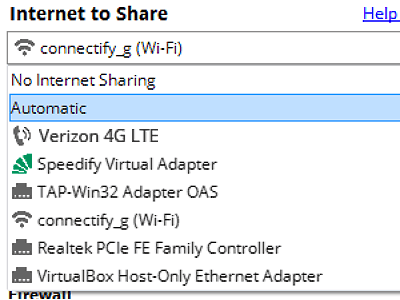
Pick what you are sharing
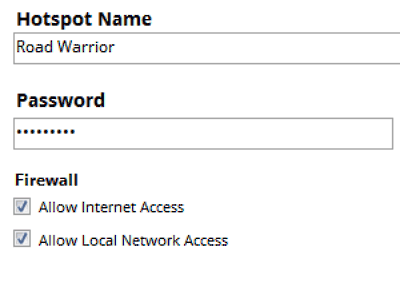
Choose the connection your Windows PC is already using, then set a hotspot name and password.
-
Start Hotspot
Your phone, tablet or console now sees the network name you just typed. Connect to that network like any other Wi-Fi.


Available for Windows 10 and 11
Connectify Hotspot – Much More Than Just a Virtual Router App for Windows
Along the main functionality of sharing any type of Internet connection via Wi-Fi or Ethernet, Connectify Hotspot comes packed with other cool advanced virtual router features:
- Boost Your Range Instantly with Wi-Fi Repeater Mode: Easily extend the range of your existing Wi-Fi network!
- Save Money While Traveling: Stuck at a hotel that charges for Internet per-device? With Connectify Hotspot, join the Wi-Fi, start a hotspot, and get all of your devices online for the price of one.
- Save Time, Internet Bandwidth and Battery Life for your devices by turning your Windows laptop or PC into a whole house ad blocker. The ad blocking is universal – also works with in-app ads and is a viable solution to block iPhone app ads.
- Connectify Hotspot is also fully compatible with all gaming consoles: PlayStation, Xbox, Nintendo, etc. It solves all issues related to connecting to the Internet or the home network via its unique Gaming Mode feature.
Looking for the best free Wi-Fi router? Get started quickly and easily with Connectify Hotspot for FREE! There’s no need to sign-up for an account – just turn it on and you’re ready to go!
Free, PRO or MAX
Which version of Connectify Hotspot you need
The free version of Connectify Hotspot covers the setup in this guide. The only limit you will hit is the 60-minute session, and restarting the session takes one click.
Recommended: MAX adds Connectify Hotspot's Repeater Mode and Bridging Mode, which is what most people come back for later.
Available for Windows 10 and 11