


How Many Devices Can Connect to a Windows Hotspot? (And How to Go Past the Limit)
The short answer: eight. The Mobile Hotspot built into Windows 10 and Windows 11 accepts a maximum of eight connected devices, and there is no setting anywhere in Windows to raise it.
If you have hit that ceiling (a family with several phones, a workshop full of tablets, a classroom, a house where the TV, console, speaker and doorbell all want in), this page explains what the limit is, why it exists, and the two ways past it. One of them is Connectify Hotspot, which does not impose a device cap at all.
Where Does the 8-Device Limit Come From?
It is a limit of the hosted network feature that Windows uses to create a hotspot: a software layer over your Wi-Fi adapter that lets one radio act as both a client and an access point. Microsoft capped it at eight, and that cap is baked into the feature rather than exposed as a setting.
It is not a limit of your hardware. The same Wi-Fi adapter, driven by software that does not use the hosted network feature, will happily carry considerably more. Nor is it a limit of your internet connection: the connection is usually fine long after the eighth device is refused.
How to Tell You Have Hit It
The symptom is not obvious, because Windows does not tell you. What you see instead:
- A ninth device says it cannot join, or sits at “obtaining IP address” forever.
- A device that worked yesterday no longer connects, because something else took its slot.
- Devices appear to take turns: one drops off and another gets in.
Open Settings → Network & internet → Mobile hotspot and count the connected devices. If it says 8 of 8, that is your answer. If it is showing fewer than eight and a device still cannot connect, you are looking at a different problem: usually the connection failing for another reason.
Setup · about two minutes
Get Connectify Hotspot running on your Windows PC
Three steps, no command prompt, no netsh commands to remember.
-
Install and open Connectify Hotspot
Run the installer and let the install finish. Connectify Hotspot opens on its own.

-
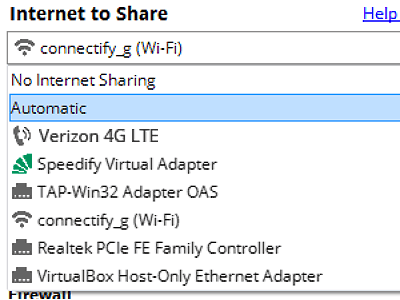
Pick what you are sharing
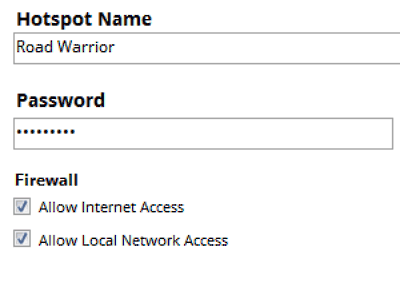
Choose the connection your Windows PC is already using, then set a hotspot name and password.
-
Start Hotspot
Your phone, tablet or console now sees the network name you just typed. Connect to that network like any other Wi-Fi.


Available for Windows 10 and 11
Option 1: Get Under the Limit
Sometimes the cheapest fix is to stop devices you do not care about from taking slots:
- Change the password. Every device that ever joined will keep rejoining automatically. A new password evicts the ones you have forgotten about.
- Turn off Wi-Fi on devices that do not need it right now: a spare tablet in a drawer will still hold a slot.
- Move the always-on devices to your router instead and keep the PC hotspot for the ones that genuinely need it.
This is worth ten minutes if you are only one or two devices over. It is not a solution if you routinely need a dozen.
Option 2: Use Software Without the Limit
The limit is a property of the Windows feature, not of your PC, so replacing that feature removes it. Connectify Hotspot creates the hotspot with its own driver rather than the Windows hosted network, and it does not impose an eight-device cap.
- Get Connectify Hotspot on your Windows 10 or 11 PC and restart when it asks.
- Turn off the built-in Windows Mobile Hotspot first. Running both at once causes exactly the kind of intermittent connection failure you are trying to escape.
- Open Connectify Hotspot, pick the connection you want to share: Wi-Fi, an Ethernet cable, or a phone or dongle plugged into the PC.
- Name the network, set a password, and press Start Hotspot.
- Connect your devices. The app lists each one by name, shows what it is using, and lets you block any of them individually.
How Many Devices Is Realistic?
Removing a software cap does not remove physics, and it would be dishonest to suggest otherwise. What actually determines your ceiling:
- Your internet connection. Twenty devices browsing is fine on most broadband. Four devices streaming 4K is not, on any setup.
- Your Wi-Fi adapter. A modern laptop adapter handles fifteen or twenty light clients comfortably. A cheap USB dongle will struggle sooner.
- What the devices are doing. Sensors, plugs and e-readers cost almost nothing. Video calls and game downloads cost a lot.
- Distance and interference. A PC hotspot is one radio in one spot, and it is not competing with a proper router’s antennas.
If you need thirty devices with heavy traffic across a whole building, buy an access point: that is what they are for. If you need ten to fifteen devices in one or two rooms, or you need this somewhere a router is not an option, a PC does the job well.
The Other Windows Hotspot Limits Worth Knowing
The device cap rarely arrives alone. The built-in hotspot also:
- Switches itself off when nothing has been connected for a few minutes.
- Puts connected devices on a separate network from the PC, which breaks casting and local discovery.
- Refuses to share some connections, including several tethered phones and USB modems.
- Cannot rebroadcast the Wi-Fi network the PC is already on.
- Does not exist at all before Windows 10.
Why Connectify Hotspot Handles More Devices
- No 8-device cap: the ceiling is your hardware and your connection, not a setting someone chose.
- Each connected device is named and listed, with its data use visible, so you can see who is using what.
- You can block any device with one click, without changing the password for everyone.
- Connected devices can be placed on your main network so they can see each other: useful once you have a TV, a speaker and a console on there.
- Built-in ad blocking across every connected device, which measurably reduces traffic when there are a lot of them.
Need more than eight devices online? Get started with Connectify Hotspot today for FREE and connect them all.
Free, PRO or MAX
Which version of Connectify Hotspot you need
The free version of Connectify Hotspot covers the setup in this guide. The only limit you will hit is the 60-minute session, and restarting the session takes one click.
Recommended: MAX adds Connectify Hotspot's Repeater Mode and Bridging Mode, which is what most people come back for later.
Available for Windows 10 and 11