


We’re excited to announce the release of Connectify Hotspot 8.0. This release includes stability and performance upgrades for the fastest and most reliable Hotspot experience yet. Connectify Hotspot 8.0 also includes fixes and improvements reported by users and important security updates.
Here’s what’s new in Connectify 8:
Hotspot
- Fix Android clients not being able to connect when Local Access is disabled.
- Option to ‘Disable Adapter Power Management’ (Under Settings/Advanced) on the Hotspot adapter. This may help users who have client devices all get kicked off or have the hotspot disappear if sharing Ethernet. You may need to reboot your computer after starting a hotspot for the first time for this setting to take full effect in Windows
- Give more time for adapters to come up when starting an Access Point to avoid some instances of ‘Hosted Network unavailable’ and similar failed starts.
- Fix a peer scanning deadlock on background threads
- Fix for some clients devices (mostly Android) avoiding a Hotspot or disconnecting from a Hotspot
Dispatch
- New, updated Dispatch tutorial
- Fix Dispatch tutorial ‘Do not show this again’ button
- Detect multiple connections to the same network, which can lead to various connectivity issues
- Sort adapter list in Application Settings by most recent connections
- Fixes around secure connection grouping when an interface is set to NEVER or becomes Overlimit
- Reset connections on other adapters when setting an Application to a specific adapter
General
- Fix uninstaller not getting created on some systems during a fresh install
- Automatically start service dependencies if they are disabled (WLAN AutoConfig, Windows Management Instrumentation) and warn during install if these services are not present
- Enable Wi-Fi devices that are software-disabled when starting a Hotspot, instead of informing the user that they should enable their Wi-Fi devices.
- Fix a Hotspot UI crash
- Work around some email systems not liking our secured log files
- Stability fixes
- New, updated Activation screens
- Protect against deadlocks causing Hotspot and Dispatch UIs to freeze up
- Stabilize license check on some systems
- Fix Installer hang on ‘Checking software conflicts’
- Fix Hotspot/Dispatch hang on launch
- Support for activation behind a proxy that requires authentication
Share this Post
Setup · about two minutes
Get Connectify Hotspot running on your Windows PC
Three steps, no command prompt, no netsh commands to remember.
-
Install and open Connectify Hotspot
Run the installer and let the install finish. Connectify Hotspot opens on its own.

-
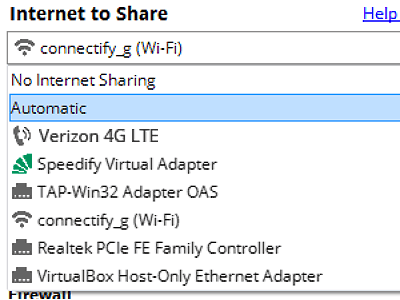
Pick what you are sharing
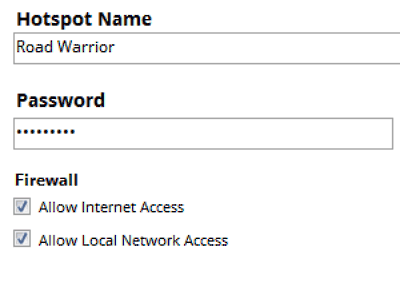
Choose the connection your Windows PC is already using, then set a hotspot name and password.
-
Start Hotspot
Your phone, tablet or console now sees the network name you just typed. Connect to that network like any other Wi-Fi.


Available for Windows 10 and 11
Available for Windows 10 and 11