

Everybody knows that life is complicated. Among the many issues that make it so, you may find yourself in a situation where your network administrators will not allow you to connect more than one device to the network for various reasons, though they usually boil down to a desire to charge you extra money.
“Well then, I’ll just buy a router and problem solved!” It’s not that simple, unfortunately. Network administrators have started to use increasingly sophisticated tools for detecting other computers behind routers. So, what’s the solution here?
There are 2 options that allow you to run Connectify and still appear to be single computer using the Internet:
- Just use Connectify – the program changes the traffic to make it look like all the packets came from your computer. This is the easiest route to hassle-free Internet in this context.
- If the first option doesn’t work, you can use a VPN program and pick the VPN as the “Internet to Share” in Connectify Hotspot’s interface. This way, your network admins will see nothing else but that you’re running a VPN program, if that’s something they accept. This also has the effect that the clients are only borrowing your Internet connection, not getting access to your local area network (which might be what the administrators are trying to protect). This is certainly the most foolproof method for hiding your clients.
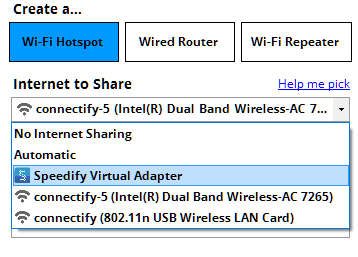
Use a VPN such as Speedify as your “Internet to Share”
One quick note here – if it’s really important, the #2 (The VPN) is the safest option for protecting your security on any network.
Have fun and stay safe on the Internet!
Share this Post
Setup · about two minutes
Get Connectify Hotspot running on your Windows PC
Three steps, no command prompt, no netsh commands to remember.
-
Install and open Connectify Hotspot
Run the installer and let the install finish. Connectify Hotspot opens on its own.

-
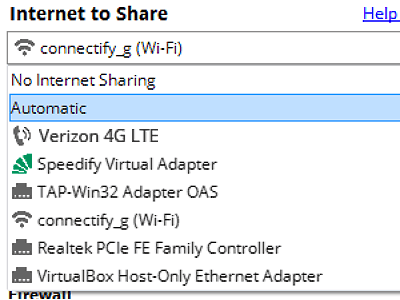
Pick what you are sharing
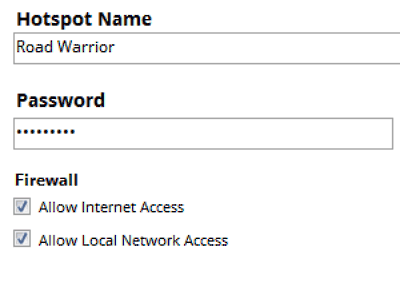
Choose the connection your Windows PC is already using, then set a hotspot name and password.
-
Start Hotspot
Your phone, tablet or console now sees the network name you just typed. Connect to that network like any other Wi-Fi.
Available for Windows 10 and 11
Free, PRO or MAX
Which version of Connectify Hotspot you need
The free version of Connectify Hotspot covers the setup in this guide. The only limit you will hit is the 60-minute session, and restarting the session takes one click.
Recommended: MAX adds Connectify Hotspot's Repeater Mode and Bridging Mode, which is what most people come back for later.
Available for Windows 10 and 11