
How to Share Your Phone’s 5G Data With a Laptop, TV and Console at the Same Time
Home broadband is out, you have moved somewhere the line has not been installed yet, or you are working from a place that simply does not have fixed internet. Your phone has a fast 5G connection and a generous data allowance. The obvious move is to turn on its personal hotspot, and then you discover the limits: a handful of devices at most, a battery that drains in three hours, a phone that heats up, and a TV or console that either cannot see the network or refuses to work properly on it.
There is a better arrangement. Connect the phone to a Windows PC and let Connectify Hotspot take that connection and rebroadcast it properly.
The phone stays cool and charging, and everything else joins a stable network with no device limit.
Why Not Just Use the Phone’s Own Hotspot?
For one laptop for an hour, the phone’s hotspot is fine. For a household, it runs into four things:
- Device limits. Most phones cap the personal hotspot at 5 to 10 devices, and some carriers set it lower.
- Battery and heat. A phone acting as a router for several devices runs hot and flat. Charging it while it does so makes the heat worse, and heat throttles the modem.
- Weak coverage. A phone’s Wi-Fi radio is designed to reach a pocket, not a house. Signal drops off fast a room away.
- Devices that will not cooperate. Consoles frequently report a restrictive NAT type on a phone hotspot, and smart TVs often cannot see a 5 GHz-only phone network.
Routing through a PC fixes all four, because the PC has a mains supply, a better radio and far more control over the network it creates.
One plan, every device
Connectify Hotspot turns one mobile connection into Wi-Fi for everything
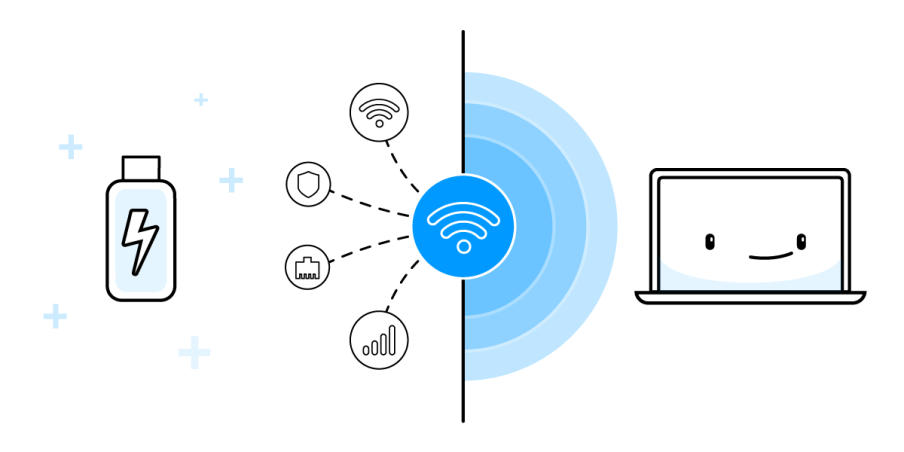
A tethered phone or a 4G or 5G dongle gives one machine a connection. Connectify Hotspot takes that connection and rebroadcasts a Wi-Fi network the rest of your devices can join.
Mobile data in Wi-Fi out
Phone hotspots cap how many devices can join, and running a hotspot drains the phone battery. Passing the connection through a Windows PC instead lifts that cap, and the phone can sit on a charger while the Windows PC does the work of handing out addresses.
Every device joins the same network, so a laptop, a tablet and a console all sit behind one data plan without any of those devices being tethered directly.
PRO Sharing a tethered phone or a mobile dongle is a PRO feature, and the free version stops each session after 60 minutes.
Some carriers restrict re-sharing a tethered connection, and some plans meter tethered data separately from phone data. Check the terms of your plan before putting a household on one line.
Available for Windows 10 and 11
What You Need
- A Windows 10 or 11 PC with a Wi-Fi adapter: any laptop, or a desktop with a USB Wi-Fi dongle.
- A phone with a data plan that permits tethering. Most do; a few cheaper plans still charge extra or block it, so check before you rely on it.
- A USB cable. You can connect the phone over Wi-Fi instead, but USB is better here: it is more stable, and it charges the phone while it works.
- The Connectify Hotspot app installed on the PC.
Worth saying plainly: this uses your mobile data allowance, and a household of devices gets through data far faster than a phone alone. Streaming, cloud backup and game updates are where it goes.
5 Steps to Share Your Phone’s Data From a PC
The built-in Windows Mobile Hotspot can sometimes do this, but frequently will not offer a tethered phone as a shareable connection: it depends on the phone, the carrier and the driver, and there is no way to make it appear. Connectify Hotspot is not fussy about the source connection, so the steps below use it.
- Get Connectify Hotspot and install it on the PC, then restart when prompted.
- Plug the phone into the PC with a USB cable and turn on USB tethering: on Android it is under Settings → Network & internet → Hotspot & tethering; on iPhone, turn on Personal Hotspot and choose to trust the computer. Windows will add a new network connection.
- Open Connectify Hotspot and select that tethered connection under Internet to Share.
- Give your network a name and a password. If a smart TV or older device needs to join, set the band to 2.4 GHz: more devices support it and it travels further.
- Press Start Hotspot, then connect everything else to it as you would to a home network.
Getting a Console Working Properly
A console behind a phone connection is two layers of address translation away from the internet, which is what produces a strict NAT type and unreliable matchmaking. Connectify Hotspot’s bridging mode removes one of those layers by putting connected devices on the same network as the PC. Our guide to changing NAT type on a console covers what to expect.
Even then, be realistic: carriers themselves use address translation on mobile networks, so some multiplayer titles will never be perfect over 5G. Downloads, streaming and single-player are unaffected.
Keeping the Data Bill Under Control
This is the part that catches people out. A few habits that help:
- Set the network as metered on every Windows device that joins, which stops large automatic updates.
- Turn off automatic photo and cloud backup on phones and tablets while they are on this network.
- Drop streaming quality: the difference between 4K and 1080p is roughly three times the data for a screen most people cannot tell apart at normal viewing distance.
- Watch the per-device data figures in the app and find out which device is the problem before the allowance is gone, not after.
If you also have a wired connection available in some rooms, our guide on sharing a wired connection over Wi-Fi covers the cheaper option.
Why Connectify Hotspot Is the Best Way to Share Mobile Data
- It shares tethered phones and 4G/5G dongles that the Windows hotspot often refuses to list.
- No device limit, so a household of phones, tablets, a TV and a console all fit.
- Per-device data usage is shown clearly, and any device can be blocked instantly, which matters a lot on a metered plan.
- Ad blocking across every connected device cuts real data, not just annoyance.
- Bridging mode puts consoles and streaming devices on the main network so they behave properly.
Running a whole household on mobile data? Get started with Connectify Hotspot today for FREE and give every device a stable connection.
Free, PRO or MAX
Which version of Connectify Hotspot you need
This setup needs Connectify Hotspot PRO. Sharing a tethered phone or a mobile dongle is a PRO feature, and a connection you depend on should not drop every 60 minutes.
Recommended: MAX covers everything PRO does and adds Connectify Hotspot's Repeater Mode and Bridging Mode, so one purchase covers the next setup too.
Available for Windows 10 and 11