

Connectify Hotspot Command Line Interface Makes It Easy to Share Internet to All Devices
Connectify Hotspot is the only WiFi mobile hotspot program that works trouble-free with all Windows versions. It’s the most popular WiFi sharing program across the world and given that, we’re often getting questions related to using it, including automating the functionality in order to manage it without using the user interface.
We’ve got the solution: the Connectify Hotspot command line interface (CLI) is the way to go. As the name suggests, it’s a command line program which allows you to control many of the settings that are normally manipulated through the user interface.
Why Use Connectify CLI to Turn Your PC into a WiFi Hotspot from Command Prompt
Advanced Windows users and developers, but even gamers and other people that use Connectify Hotspot on a regular basis can use this. It’s a very easy way of managing the virtual router functionalities from the command prompt.
Plus – if you’re an app developer and want to include WiFi mobile hotspot functionality in your app, it’s very simple to create a script within your app that would call command prompt commands in the background. The more seamless it is to the user, the better the experience is.
Setup · about two minutes
Get Connectify Hotspot running on your Windows PC
Three steps, no command prompt, no netsh commands to remember.
-
Install and open Connectify Hotspot
Run the installer and let the install finish. Connectify Hotspot opens on its own.

-
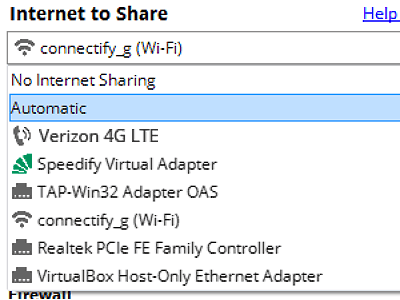
Pick what you are sharing
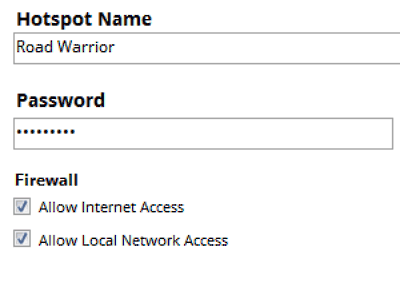
Choose the connection your Windows PC is already using, then set a hotspot name and password.
-
Start Hotspot
Your phone, tablet or console now sees the network name you just typed. Connect to that network like any other Wi-Fi.
Available for Windows 10 and 11
How Connectify Hotspot CLI Works and What Can It Do
As any command prompt based app, the Connectify Hotspot CLI requires you to input commands with arguments. The output of the command is formatted as JSON to make processing from other programs easier.
The first field, that is guaranteed to exist, is a boolean named “res”. If res is true, then the command ran successfully, and the JSON also contains the results of the command. If “res” is false, then there was an error. In this case, there is an “err” field which contains an object with both an integer errorCode and an a text errorText.
Connectify Hotspot CLI allows you to:
- Start and stop a WiFi mobile hotspot
- View the status and settings of the WiFi mobile hotspot
- List adapters and connected clients
- Set DHCP mode
Learn more about using the Connectify Hotspot command line interface.
Free, PRO or MAX
Which version of Connectify Hotspot you need
The free version of Connectify Hotspot covers the setup in this guide. The only limit you will hit is the 60-minute session, and restarting the session takes one click.
Recommended: MAX adds Connectify Hotspot's Repeater Mode and Bridging Mode, which is what most people come back for later.
Available for Windows 10 and 11