
Connectify Hotspot 27.1: IPv6 and a better Wi-Fi repeater
Connectify Hotspot 27.1 is here, and its headline is IPv6: devices on your hotspot can now get IPv6 addresses from the network you’re sharing, in bridged, repeater and routed modes. We also spent a lot of time with Wi-Fi repeater and bridged mode on real networks, and fixed what we found there, from WPA3 networks that never showed up in the list to devices that showed as a bare MAC address. It’s a free update for everyone on Connectify Hotspot 27.
MAX Launch offer: 70% off Hotspot PRO and MAX.
Each device gets its own IPv6 address from your home network, next to its IPv4 address.
IPv6 for the devices on your hotspot
Until now, devices on a Connectify Hotspot only ever got IPv4. That mostly worked, because nearly every site still answers on IPv4, but it meant IPv6-only services were out of reach, and on networks that hand out IPv6 your laptop had it while your phone on the hotspot didn’t. In 27.1, if the network you’re sharing has IPv6, your devices can get their own IPv6 addresses from it.
Settings > Network
Bridged mode
Routed mode
There are two new switches, both in Settings > Network, both off by default, and both part of Hotspot MAX:
- IPv6 for bridged devices, in the new Bridged mode card. It works with Bridged network access and in Wi-Fi repeater mode. Your devices are already on the shared network in those modes, and now they get IPv6 there too.
- IPv6 for routed devices, in the Routed mode card. IPv4 stays behind Connectify Hotspot’s router exactly as before, and devices also get IPv6 addresses from the shared network. Connections from the outside to your devices over IPv6 stay blocked, so your devices are no more exposed than they are behind the hotspot’s IPv4 router. Ad blocking and your DNS choice still apply to IPv6 lookups.
Routed IPv6 comes with a new Stealth Mode switch, right above it. Stealth Mode has always been on behind the scenes: it makes your devices’ traffic look like it comes from your PC. With IPv6 each device gets its own address that the network can see, so the two can’t both be on. Stealth Mode stays on by default; turn it off when you want routed IPv6.
A few more details:
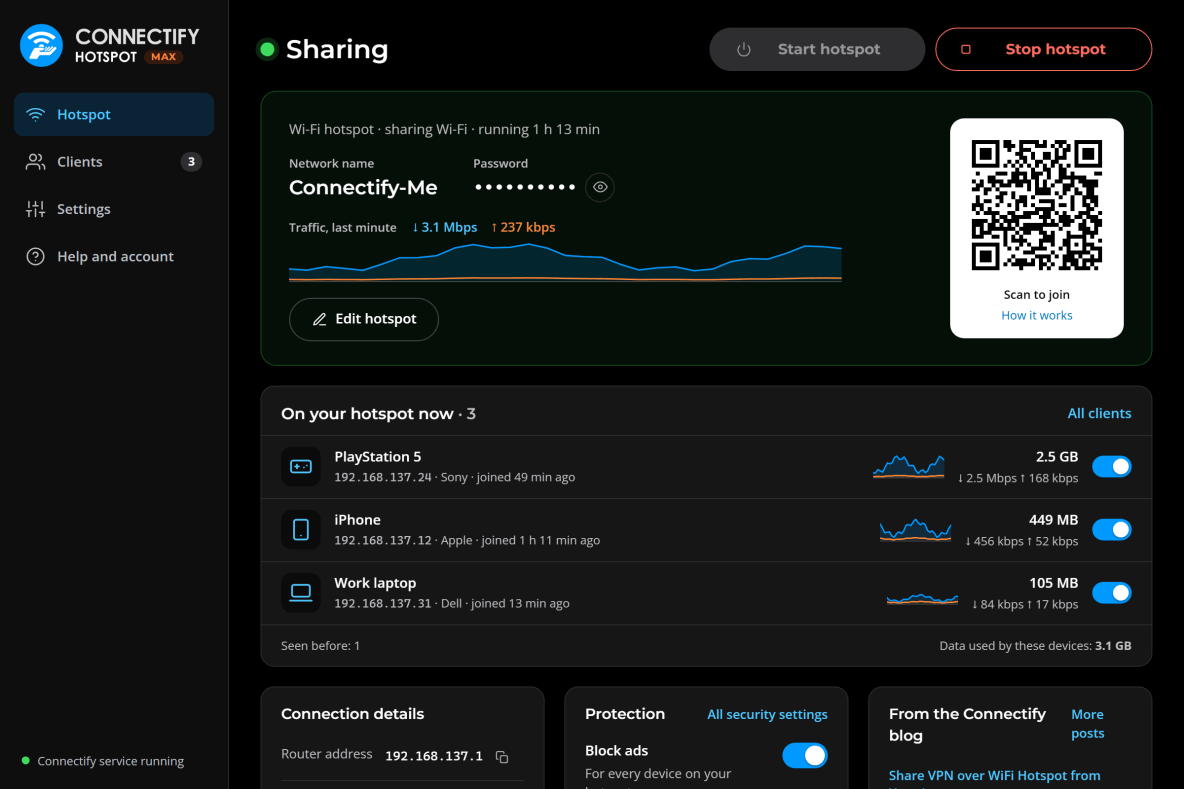
- The Clients screen lists each device’s IPv6 addresses under its IPv4 address, each with a copy button.
- IPv6 traffic counts toward each device’s data used.
- IPv6 works when the connection you share is Wi-Fi or Ethernet. It doesn’t go through Speedify or a VPN yet.
- If your hotspot is also connected to the shared network some other way (a device plugged into both, say), IPv6 could loop between them. Connectify Hotspot notices, pauses IPv6 for up to an hour, and tells you which device the loop came through. IPv4 keeps working throughout.
- Command-line users get
connectify_cli ipv6bridge,ipv6routedandstealth.
The details are in What is the difference between Routed and Bridged network access? and What is bridging mode?
A better Wi-Fi repeater
WPA3
- WPA3 networks can be repeated. Before, the repeater only listed networks saved as WPA or WPA2. Current Windows 11 saves many newly joined networks as WPA3, including iPhone Personal Hotspots and plenty of plain WPA2 home networks, so on an up-to-date PC the list could come up empty. Those networks now show up. The repeater itself can only offer WPA2, so it repeats a WPA3 network as a separate network: the same name with -EXT on the end, like a range extender, and the same password. That way phones don’t warn that the network’s security changed every time they move between your router and the repeater. The setup form tells you the name devices should join. WPA and WPA2 networks are repeated under their own name, as before.
- It picks the network you’re on. Repeater mode only runs while your PC is connected to the network it repeats, and the setup form used to pick the first saved network, whichever that was. It now chooses the network your PC is connected to, and if you pick a different one, it warns you that the hotspot will pause until your PC joins it.
- It remembers your choice. Switching to another screen and back no longer resets the form to Wi-Fi hotspot.
- It shows the right name and password. While repeating, the Hotspot screen showed the name and password of your Wi-Fi hotspot settings, which a repeater doesn’t use. It now shows the name the repeater is actually broadcasting, and “Same as” the repeated network for the password.
- It works out Location services. On Windows 11 24H2 and later, turning off Windows Location services hides which Wi-Fi network your PC is on, even from Connectify. The repeater list used to come up empty, and bridged mode refused to start on a perfectly good Wi-Fi connection. Now bridged and routed hotspots start as normal, with a note explaining the missing network name. The repeater, which has to know which network your PC is on, tells you why it can’t start and gives you a button that opens the Location setting. A repeater that starts with Windows waits, and starts on its own once Location is turned on.
Your devices in bridged and repeater modes
Real device names
In bridged and repeater modes, the network’s own router hands out addresses, so Connectify Hotspot never heard a device’s name and listed it by MAC address with a generic icon. It now reads the name each device sends when it asks for an address, so your phone shows as your phone.
Activity graphs
The live traffic graphs on the Clients and Hotspot screens used to be switched off in bridged and repeater modes. They’re back, with each device’s speed and data used.
Wired bridges list their devices
With Wired router mode and Bridged network access, connected devices didn’t appear on the Clients screen at all. They do now.
Clearer settings
With Network access set to Bridged, every switch in the Routed mode settings was grayed out, with a short “Not available in bridged mode” under each and no hint why. The card now says in one line that Network access is set to Bridged, with a link that takes you straight to that setting. Ad blocking and the DNS choice get the same link.
Other fixes
- Your edition shows correctly. With Appearance set to System and Windows in light mode, Help and account could show Hotspot Lite for a PRO or MAX license. Your features were never affected, only the label.
- Stop works on a paused hotspot. Pressing Stop while the hotspot was paused could leave it showing Stopping until Connectify was restarted. It now stops in a few seconds.
- No more getting stuck on Starting. On some PCs a hotspot or repeater could sit on Starting for minutes, resetting the Wi-Fi adapter over and over. Windows was taking longer to report the hotspot as started than Connectify allowed. It now waits properly, and on the PC where we saw it, the same repeater starts in under a second.
- “Start router” in Wired router mode. The Start and Stop buttons now say router instead of hotspot when that’s what you’re running.

IPv6, Wi-Fi repeater and bridged mode come with MAX
Extend your Wi-Fi into every room, connect devices directly to your home network, and now give them IPv6 too. The Hotspot 27 launch offer still applies: 70% off, with a 30-day money-back guarantee.
Get it
Connectify Hotspot checks for updates on its own and will offer 27.1. To update now, go to Settings > Startup and updates and click Check for updates now, or download the latest version from connectify.me. Questions or problems? Our support site has been updated for 27.1, and we’re always glad to hear from you.