

We work very hard all day long to make sure our users are able to enjoy their own personal virtual Hotspot. Millions of users worldwide have reaped the benefits of having all their devices connected using Connectify Hotspot. Our free version allows users to share Internet from Wi-Fi networks and ethernet networks for stable connection at all times.
Now, the summer is starting to slow creep back in and it’s time to invest in Connectify PRO and MAX. Summer vacations are starting soon and having connections to good Internet could be close to none. Even now, connecting to reliable hotel or airport Internet is can be difficult and expensive. Connectify Hotspot can help users save a lot of money and time.
Most hotels require guests to pay by device, some even have 30 minute time outs! If you start a Connectify Hotspot, you can get everyone’s Wi-Fi devices connected all at once. You could also control the connectivity of your children’s devices right from your laptop with firewall controls included the PRO or MAX license.
Another PRO and MAX feature that can be extremely important when traveling is that you don’t need to invest in a mobile hotspot, especially if you’re already paying extra for 4G LTE access on your smartphone. Simply broadcast the Internet connection from a tethered smartphone and get all devices connected through Connectify Hotspot.
Finally, don’t get caught in a deadzone. Stay connected with Connectify’s bridging mode feature and enjoy great connectify throughout your trip!
Buy Connectify PRO/Max now! We promise, it’s worth every penny.
Share this Post
Setup · about two minutes
Get Connectify Hotspot running on your Windows PC
Three steps, no command prompt, no netsh commands to remember.
-
Install and open Connectify Hotspot
Run the installer and let the install finish. Connectify Hotspot opens on its own.

-
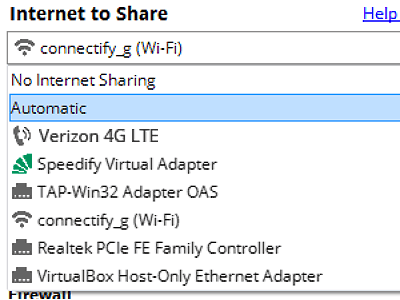
Pick what you are sharing
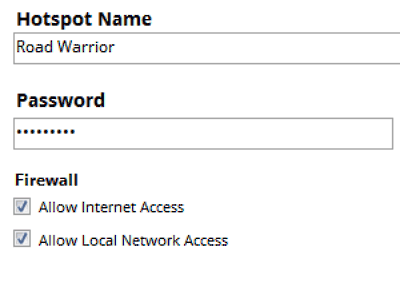
Choose the connection your Windows PC is already using, then set a hotspot name and password.
-
Start Hotspot
Your phone, tablet or console now sees the network name you just typed. Connect to that network like any other Wi-Fi.
Available for Windows 10 and 11
Available for Windows 10 and 11