
How to Improve Wireless Network Signal Range and Strength
Now that you’re spending a lot of time home, you might have found yourself in a new situation. And that is trying to work from the farthest point away from your router. That may be your attic, your roof top, a room upstairs in the other side of the house or your patio. Bottom line is you’re getting a weak WiFi signal in those places at home. So, what can you do about this?
There are three main alternatives:
- buy a new router that can cover your whole house. There are some nice mesh WiFi routers available.
- get a WiFi repeater
- use your smartphone’s cellular data for work
All three of the options above will have a significant cost attached – either for the hardware or for going over your cellular data caps.
So how to get WiFi coverage even in the most remote places around your home? We’ll let you in on a little secret: you can use your own Windows computer or even an older one that’s just lying around. Use the Connectify Hotspot to turn your computer into a virtual WiFi repeater and fix weak WiFi signal at home with no additional hardware!
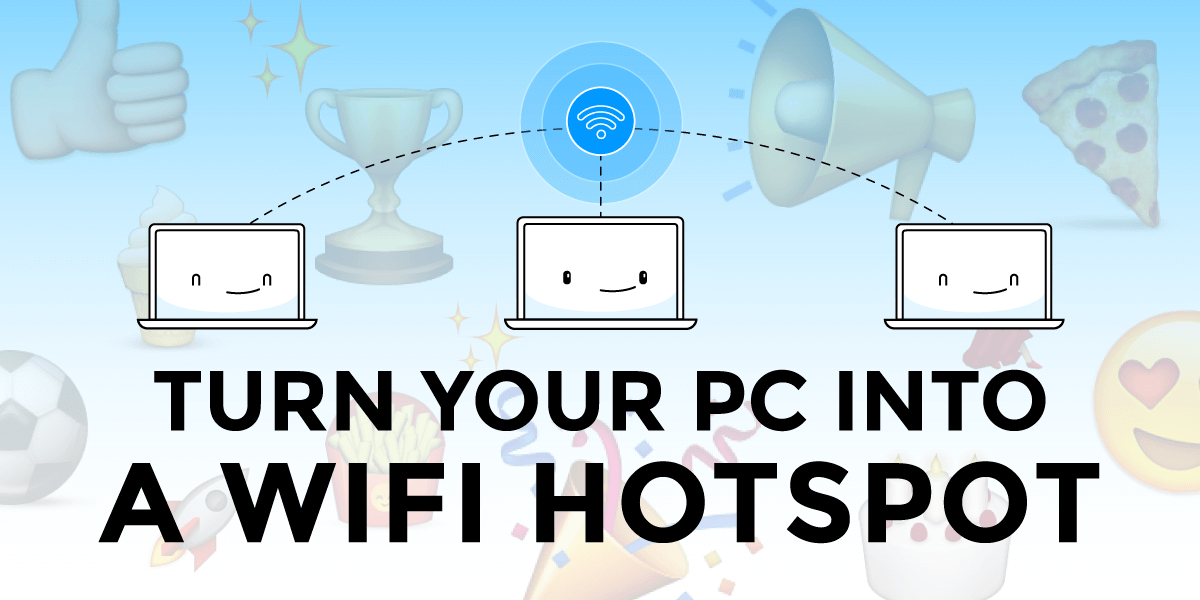
Connectify Hotspot Repeater Mode
Connectify Hotspot extends your Wi-Fi using the Windows PC you already own
Connectify Hotspot's Repeater Mode rebroadcasts the network you are already on, under the same name and password. Devices at the far end of the house join the same Wi-Fi as always and hand off without asking you to pick a second network.
A dedicated extender costs money and takes an outlet. A Windows laptop or desktop that is already sitting in the right room does the same job with software, and Repeater Mode keeps the network name identical so phones roam onto the stronger signal on their own.
Placement decides whether Repeater Mode helps. Put the Windows PC where the router signal is still solid but starting to fade, roughly at the edge of good coverage, not in the room that has no signal at all.
MAX Repeater Mode is a Connectify Hotspot MAX feature. The free and PRO versions create a separate network instead of rebroadcasting the existing one.
A repeater can only rebroadcast what a repeater receives. A Windows PC parked in the dead zone will rebroadcast a weak signal, so moving the PC closer to the router does more than any setting in the software.
Available for Windows 10 and 11
Struggling with Poor WiFi Signal? Here’s How to Fix That with WiFi Repeater Software
Do you need to boost the range of your WiFi network? Don’t want to go through the hassle of setting up a hardware WiFi repeater or buying another wireless router? There are easy-to-use repeater software products that let extend the range of your home or office WiFi. Products like Connectify Hotspot virtual router software allow you to create a WiFi repeater with just a few clicks… and there’s no additional hardware necessary!
Connectify Hotspot uses your laptop’s wireless card or your PC’s WiFi adapter. It gives your existing WiFi network the signal boost needed to reach that weak WiFi signal place in your home or office. Watch the tutorial video below to learn how you can turn your Windows computer into a WiFi repeater and boost the range of your existing wireless network at the click of a button.
Four Steps to Fix Weak WiFi Signal at Home
Step 1: Click here to get Connectify Hotspot MAX.
Step 2: Once installed, click the WiFi Repeater Mode button at the top of the Connectify Hotspot interface
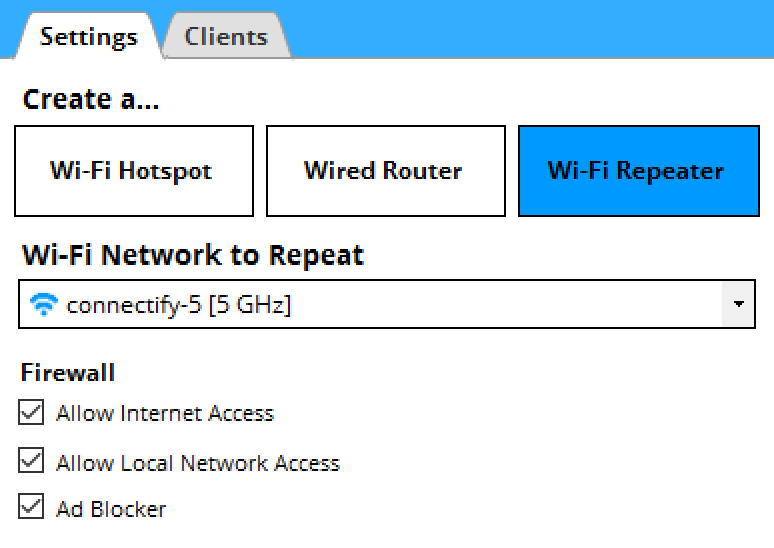
Step 3: Choose the WiFi network you want to repeat from the Wi-Fi Network to Repeat dropdown
Step 4: Finally, click the ‘Start Hotspot’ button and Connectify Hotspot will begin to act as a repeater software to extend your WiFi signal instantly
Connectify Hotspot Does Much More than Help You Avoid Weak WiFi Signal at Home
Here’s what else you can do with Connectify Hotspot:
- Save up to 60% of Internet bandwidth by using the built-in universal ad blocker. It even blocks in-app ads!
- Easily bridge other devices onto your home network with WiFi Bridging Mode: eliminate all game consoles (Nintendo, Playstation, Xbox) and smart TV issues with your home WiFi network!
- Save Money While Traveling: Get all devices online for the price of one when being charged for Internet per device at hotels, on airplanes, etc.
- Share any Type of Internet Connection with All your Devices: share Internet from existing WiFi networks, LAN, DSL, 3G/4G, tethered smartphones. You can even share a VPN connection over WiFi!
Free, PRO or MAX
Which version of Connectify Hotspot you need
This setup needs Connectify Hotspot MAX. Connectify Hotspot's Repeater Mode and Bridging Mode are both MAX features, and this guide relies on both.
Recommended: MAX is the full version, so nothing in any other guide on this site is out of reach.
Available for Windows 10 and 11