
How to Share Starlink Internet from a Windows Laptop
To share Starlink internet from a laptop, connect the laptop to Starlink over Wi-Fi or an Ethernet cable, then turn the laptop into a Wi-Fi hotspot, either with the Mobile hotspot built into Windows or with Connectify Hotspot. Check first whether you need a laptop at all: the Starlink router already makes its own Wi-Fi, and any device in its range can join it directly.
You’re not the only one trying to get Starlink to a camper, a far bedroom or a job-site trailer. This guide explains when a laptop hotspot helps on Starlink and what Connectify Hotspot, a Windows app that shares your PC’s internet connection with your other devices over Wi-Fi, adds over the Windows hotspot. Download Connectify Hotspot free to try the free features on your Starlink connection.
When You Don’t Need a Laptop Hotspot for Starlink
A laptop hotspot adds a computer that has to stay on. Skip it in these cases:
- Your devices are in range of the Starlink Wi-Fi. Join the Starlink network directly. Nothing to install.
- A wired device sits near the Starlink router. Starlink’s Router 3 has two LAN ports for wired devices, and the Router Mini has one. The Gen 2 router that came with Standard Actuated and High Performance kits has no Ethernet ports; Starlink sells an Ethernet Adapter for it.
- You need Wi-Fi across a whole house or building. Starlink sells Starlink Mesh separately, and you can also connect your own router. Starlink notes that it doesn’t guarantee performance or compatibility with third-party equipment.
When Sharing Starlink from a Laptop Makes Sense
- The Starlink Wi-Fi reaches the laptop but not the device. In a camper, cabin or job site, put the laptop where it still gets the Starlink signal and share from there to the devices further away.
- A device has Ethernet only, and the Starlink router is out of reach. A laptop on the Starlink Wi-Fi can pass the connection down a cable to a desktop, console or TV.
- You want control over what each device does. Seeing which device uses the data, cutting one off, or blocking ads for all of them.
- The laptop runs a VPN and you want your other devices on it too.
The simplest wired route is a cable from a LAN port on the Starlink router to the laptop. Bypass mode is the other wired route: it turns off the Starlink router’s Wi-Fi so you can connect your own router to Starlink, and a laptop on that cable would share the connection in the router’s place. Starlink documents bypass for routers, not laptops, and only a factory reset turns it off again, so try the LAN port first. On a Starlink Mini, Starlink’s steps for a wired router are to remove the Starlink plug from the Ethernet port, connect an Ethernet cable and turn on bypass in the Starlink app; Starlink warns that the Mini is no longer rated IP67 with a standard RJ45 cable.
What Connectify Hotspot Adds over the Windows Hotspot on Starlink
Windows 10 and 11 include Mobile hotspot, which shares a Wi-Fi, Ethernet or cellular connection over Wi-Fi or Bluetooth. On Windows 11, you’ll find it under Settings > Network & internet > Mobile hotspot. For a phone or two now and then, Mobile hotspot is enough. Connectify Hotspot adds these, and the first five are free in Connectify Hotspot Lite:
- See each device and its data use, and switch any one off (free). If your Starlink plan has a data allowance, the device list shows which phone or console is using it, and you can cut off internet access for one device without stopping the hotspot.
- Gaming mode for each device, with UPnP on by default (free). UPnP (Universal Plug and Play) lets a console open the connections an online game needs, by itself. More on Starlink and NAT below.
- Ad blocking for every device (free). Turn on Block ads once on the laptop, and it applies to every phone, tablet and TV on the hotspot.
- Share a VPN, including WireGuard VPNs (free). If you want to get a more reliable internet connection, as well as faster downloads and uploads, you can share a Speedify bonded internet connection. Connectify Hotspot Lite also shares OpenVPN and WireGuard-based VPNs such as NordLynx, Proton VPN with WireGuard and Mullvad. NordVPN’s own guide says the Windows mobile hotspot won’t work with NordLynx and tells you to switch to OpenVPN. See the mobile hotspot VPN guide for the setup.
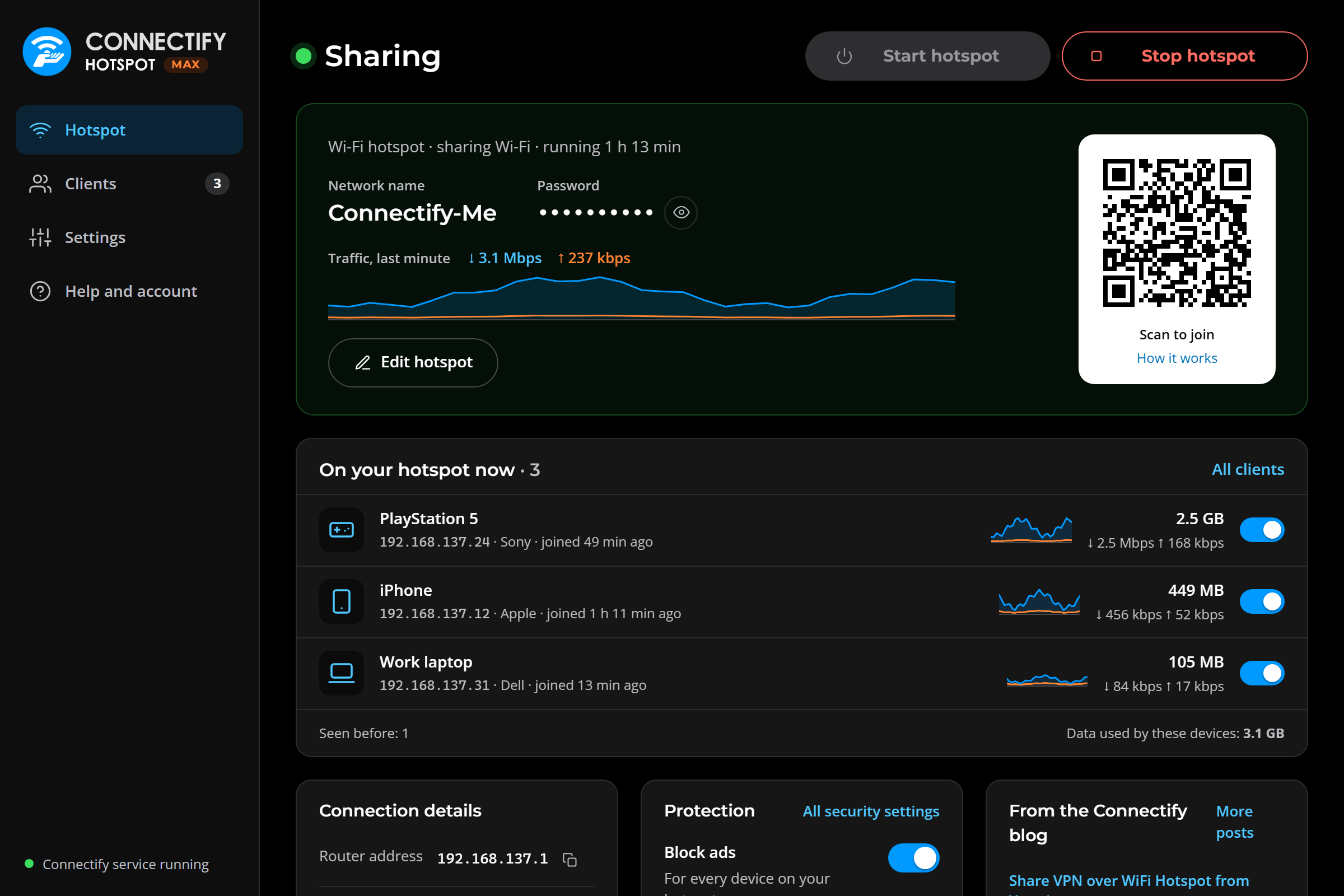
- Join with a QR code (free). Phones join by scanning the code on the Sharing screen instead of typing a password.
- Wired router mode (PRO). Shares the laptop’s Starlink connection over an Ethernet cable to a device with no Wi-Fi. The Windows hotspot doesn’t share through an Ethernet port.
- Wi-Fi repeater mode (MAX). Repeats the Starlink Wi-Fi from where the laptop sits, to reach a far room or the other end of an RV. Repeater mode needs a Wi-Fi adapter that supports it, and ad blocking doesn’t work in repeater mode.
Session length is the trade-off in the free edition: Connectify Hotspot Lite runs in 60-minute sessions, and you start it again to continue. PRO and MAX have no time limit.
Side by side
Where the built-in Windows 11 hotspot stops and Connectify Hotspot keeps going
Windows 10 and 11 include Mobile Hotspot, and for sharing a connection with a few devices now and then it does the job well. Here is where the two differ, so you can tell whether you need more.
If the Windows hotspot covers what you need, keep using it. Turn it off before you start Connectify Hotspot, since running both at once causes dropouts.
For 64-bit Windows 10 and 11
Checked against Windows 11 26H2 and Connectify Hotspot 27, October 2026
Share Starlink Internet from a Laptop in 6 Steps
- Connect the laptop to Starlink: join the Starlink Wi-Fi, or plug an Ethernet cable into a LAN port on the Starlink router (or into the Ethernet Adapter on a Gen 2 router).
- Download and install Connectify Hotspot on your 64-bit Windows 10 or 11 PC.
- Open it and choose Wi-Fi hotspot. For a device on a cable, choose Wired router mode (PRO); to repeat the Starlink Wi-Fi, choose Wi-Fi repeater mode (MAX).
- Under Internet to share, pick the Starlink connection: the Wi-Fi network or the Ethernet port.
- Set a password. In Wi-Fi hotspot mode, turn on Block ads if you want lighter pages on every device. Lite runs in 60-minute sessions; PRO removes the limit.
- Click Start hotspot. Devices join by scanning the QR code on the Sharing screen, or with the network name and password, like any other Wi-Fi network.
Connectify Hotspot 27 runs on 64-bit Windows 10 (version 1703 or later) and Windows 11. On a Windows 7 or 8 PC, use Connectify Hotspot 2021 instead: see our Windows 7 and Windows 8 guides.
For more on placing the laptop in an RV, boat or cabin, see how to share a Starlink connection with all your devices from a Windows PC.
Starlink NAT Type: Why Consoles Can Report Strict NAT on Starlink
NAT (Network Address Translation) lets several devices share one internet address. By default, Starlink adds a second layer on its own network, called carrier-grade NAT (CGNAT): your Starlink gets a private address, and Starlink translates it to a public address on its own network. Starlink’s support pages say three things that matter for gaming:
- The default CGNAT setup doesn’t allow inbound traffic, so other players can’t start an IPv4 connection to your console.
- Starlink’s Wi-Fi routers don’t support port forwarding.
- A public IPv4 address is an option on Local Priority and Global Priority plans, and Starlink supports IPv6 on every router and plan.
Starlink’s advice for customers who need inbound traffic is to consider a third-party router and, for IPv4, a plan with the public IPv4 option. The guide on how to change your NAT type covers console and router settings.
When a console joins Starlink through a laptop, the laptop adds one more translation step. Connectify Hotspot Lite handles that step for free: open the Clients screen, select the console and set its gaming mode, with UPnP on by default. Gaming mode can’t change Starlink’s CGNAT, so a console on Starlink can still report a strict or moderate NAT type, and no laptop setting promises an open one.

Keep the Laptop Awake While It Shares Starlink
The hotspot runs only while the laptop does. On laptops with Modern Standby, Windows stops the hotspot about 10 minutes after the screen turns off, so keep the screen on at low brightness and the laptop plugged in. Set a strong hotspot password, too: in a campground or on a shared site, anyone nearby can see the network name.
Download Connectify Hotspot free to share Starlink from your laptop with per-device controls, gaming mode and ad blocking for every device.
Available for Windows 10 and 11