
Introducing Connectify 7.1
Hotspot and Dispatch just got even better…
We are delighted to announce the release of Connectify 7.1, which includes improvements to both Hotspot and Dispatch.
Release Notes
Hotspot Changes
New Stealth Mode Feature: Feature-suite to get around pesky networks that try to block Connectify. This is available for all Connectify Hotspot users running Windows 7 and above.
- Avoid Hotel/NAT Restrictions: Workaround for networks that send back every packet with a TTL of 1 to block Connectify and routers from being used.
- Hide from Traceroute: Traffic from clients won’t appear to have gone through an extra hop to get to the upstream network, so the network won’t think there is an extra router on/behind your computer.
- Appear as Single PC (Disabled by default): Mask client traffic’s IP Identifier field to hide amongst other traffic coming from the Connectify host computer. Turning this on may help Connectify to work on more networks that block it, but may also break certain client traffic, such as traceroute and network latency tests in games.
Other Changes
- Restore URL to File Fling dialog on Flings to non-Connectify clients
- Fix access rights on deleted clients
- Better error messages around hosted network failures
- Disabling peer scanning also disables scanning services on Hotspot clients
- IP fragmentation and forwarding issue fixes. Fixes problems with iPhones, iPads watching videos over Hotspot.
Dispatch Changes
- More accurate SpeedTest results
- Reduce load on system for latency/reliability tests
General Changes
New Feature: PRO users turn software updates on or off
- Fixed installer halting issue around ‘Checking for software conflicts’
- Activation/Licensing Fixes – Fallback routine for protocol handlers for ill-configured systems, and protect against corruption of license file
- Stopped installer from killing similarly named processes running elsewhere on the system
- Resolved conflict default route with Connectify Switchboard
- Better traffic routing detection for complex networks and routes
- Better cleanup of corrupted driver installations around Windows 8.1 upgrades
- Fix recognizing traffic from Windows Server 2012 machines, possibly others
Share this Post
Setup · about two minutes
Get Connectify Hotspot running on your Windows PC
Three steps, no command prompt, no netsh commands to remember.
-
Install and open Connectify Hotspot
Run the installer and let the install finish. Connectify Hotspot opens on its own.

-
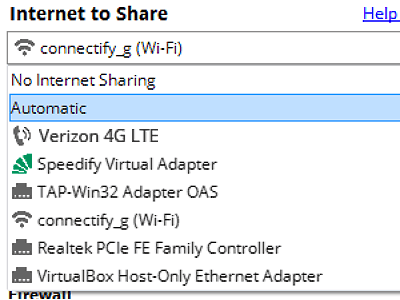
Pick what you are sharing
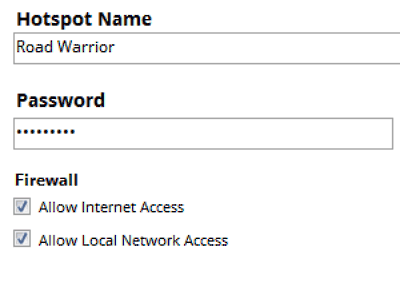
Choose the connection your Windows PC is already using, then set a hotspot name and password.
-
Start Hotspot
Your phone, tablet or console now sees the network name you just typed. Connect to that network like any other Wi-Fi.
Available for Windows 10 and 11
Available for Windows 10 and 11