
Hotspot Just Got Even Better…
The latest update to Connectify Hotspot 2015 has arrived. This release includes several bug fixes that can improve stability and performance for some users, and improves upon our brand new Hotspot 2015 MAX WiFi Repeater and Bridging Modes. We suggest that all users update immediately.Share this Post
Release Notes
- Fix ‘Start Service’ button being disabled in some situations
- Allow bridging to non-private IP subnet networks, while showing a warning that this may not work. This should allow bridging to some college/university networks
- Support bridging to networks with DHCP servers that don’t handle DHCP Relay
- Disable background Wi-Fi scans intended to keep some Wi-Fi cards awake, but that interfered with other some Wi-Fi adapters’ AP functionality
- Better job of keeping error message windows in foreground
- Clearer error messages around Wi-Fi Repeater
- Allow bridging to legacy Switchboard licenses
- Clear out update installers when generating logs
- Fix Wi-Fi Repeater error if you previously ran Wi-Fi Hotspot mode while sharing Dispatch
- Default to enabling ‘Disable Adapter Power Management’ setting to help some Wi-Fi adapter keep power when sharing Internet from another source
Setup · about two minutes
Get Connectify Hotspot running on your Windows PC
Three steps, no command prompt, no netsh commands to remember.
-
Install and open Connectify Hotspot
Run the installer and let the install finish. Connectify Hotspot opens on its own.

-
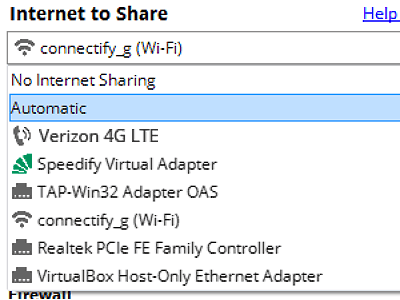
Pick what you are sharing
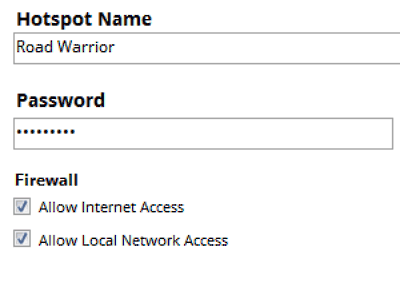
Choose the connection your Windows PC is already using, then set a hotspot name and password.
-
Start Hotspot
Your phone, tablet or console now sees the network name you just typed. Connect to that network like any other Wi-Fi.
Download Connectify Hotspot
Available for Windows 10 and 11
Download Connectify Hotspot
Available for Windows 10 and 11