

Solve Strict NAT Issues; Change NAT Type on PS4 to Open or Moderate with Connectify Hotspot
Are you having NAT type issues with your PS4? No worries, we’ve got the solution!
Using your PlayStation 4 to play games online is one of the most popular ways to relax nowadays. Being faced to human opponents certainly beats playing against the computer.
Unfortunately, when it comes to being able to connect to the Internet on your console, things are not so simple. If you’re a student, you know this much too well – usually campus WiFi networks don’t allow connections from game consoles. Sometimes it’s the router or other networking equipment you’re using that’s causing the issue. It basically resumes down to network address translation (NAT) settings.
Read below to see how you can change NAT type on your PS4 using the Connectify Hotspot app.
Strict NAT, explained
Why your game console gets Strict NAT, and how Connectify Hotspot fixes the double NAT
Strict NAT is what breaks party chat, matchmaking and hosting. The usual cause is a console sitting behind two layers of address translation instead of one, and a PC hotspot in its default mode adds the second layer.
Your router already translates one public address into addresses for everything at home. When a PC shares a connection in the normal way, the PC translates a second time, and the console ends up two levels deep. Game services see a connection they cannot reach back into and report Strict NAT.
Bridging Mode stops the second translation. Devices on the hotspot get their addresses from the router instead of from the PC, so only one layer of translation remains and the console sits on the home network like anything plugged directly into the router.
MAX Bridging Mode is a MAX feature.
Bridging Mode removes the layer the PC adds. If the router itself sits behind another router, or the internet provider uses carrier-grade NAT, a second layer remains outside the house and the console can still report Strict NAT.
What is NAT? How Does It Affect My PS4 Connectivity?
Network Address Translation (NAT) is a method used by routers to translate a public IP address (used on the Internet) into a private IP address (used on your home network) and vice versa. This is done for multiple purposes:
- to add security to the network by keeping the private IP addresses hidden from the Internet.
- to allow multiple devices to share a single IP address
In the world of gaming consoles, there are three NAT types that classify the connectivity they have to other players over the Internet:
- Open NAT (Type 1) – all is permitted – your gaming device can connect to anyone’s games and host games. Plus – other users will be able to find and connect to the games you are hosting. This is usually the case when your console is connected directly to the Internet with no router or firewall.
- Moderate NAT (Type 2) – your gaming console will be able to connect to other players, but some functions will be limited. When connecting to the Internet through a router that is configured properly, you’ll get this NAT type.
- Strict NAT (Type 3) – your gaming device has limited connectivity with other players. Other players on a moderate or strict NAT will not be able to join your hosted games. This is the case when the router doesn’t have any open ports.
So, you’ll have the best gaming experience if you’re on an open NAT or at least a moderate NAT.
Connectify Hotspot Helps You Change NAT Type on PS4
For the purpose of this article, we’ll assume that you’re connected through a router or firewall to the Internet, whether at home or through some public network.
Connectify Hotspot is the most popular software app for Windows PCs that allows you to turn your computer into a virtual router and share your Internet connection with other devices, such as gaming devices. You just have to connect the computer you have Connectify Hotspot installed to your network via WiFi or wired Ethernet, and create a WiFi hotspot. Then, connect your gaming devices to the WiFi network created with Connectify Hotspot in order to fix NAT type issues.
Below is a video that illustrates how to set up a WiFi hotspot with Connectify:
Here’s how Connectify Hotspot helps you change NAT type on your PS4:
- it will forward to TCP and UDP ports necessary for online play on your PS4
- your PS4 will automatically get NAT Type 2 (Moderate), which allows you to enjoy your gaming experience without any issues.
Still not working after taking the steps above? Read below!
Change NAT Type on PS4 Using Speedify Fast Bonding VPN with Connectify Hotspot
Sometimes your Internet connection restricts available ports to a strict NAT type 3. This usually is the case when connecting from campus WiFi, office networks, public WiFi networks etc. In this case, in order to get a moderate NAT type 2, you’ll have to bypass the port restrictions on these networks.
The simplest way to do this is by using a fast bonding VPN such as Speedify. A VPN makes it impossible for the Internet service provider to see what your traffic is about and impose port restrictions. All VPN traffic goes through predefined ports that are open.
So, getting back to changing NAT type on your PS4 – if you’re on a strict NAT type 3 network, here are the steps you should take:
- Download and install Connectify Hotspot and Speedify on your Windows laptop or PC
- Open Speedify and connect to a server (usually the closest will be best). If you have multiple Internet connections from different networks, you can combine and use them at the same time with Speedify to create a super-connection with increased bandwidth and lower lag.
- Run Connectify Hotspot. Under WiFi Hotspot mode, give your hotspot a custom name and password, and select the “Speedify Virtual Adapter” from the Internet to Share drop-down menu. Then click “Start Hotspot”.
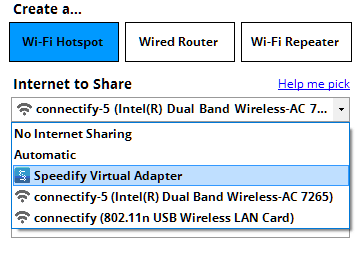
- Connect your PlayStation 4 to the hotspot you configured using Connectify. All the traffic going through this WiFi hotspot will be NAT type 2 (Moderate).
Now that you’re all set – forget about NAT type issues and enjoy your online gaming with Connectify Hotspot! And Speedify, if that’s the case. It’s that easy to change NAT type on your PS4!
Free, PRO or MAX
Which version of Connectify Hotspot you need
This setup needs Connectify Hotspot MAX. Connectify Hotspot's Repeater Mode and Bridging Mode are both MAX features, and this guide relies on both.
Recommended: MAX is the full version, so nothing in any other guide on this site is out of reach.
Available for Windows 10 and 11