

Connectify Hotspot vs the Built-In Windows Hotspot: An Honest Comparison
Windows 10 and Windows 11 include a mobile hotspot. It is free, it is already installed, and for a lot of people it is entirely sufficient. So the fair question is not “which is better” but “when is the free one not enough?”
This is a comparison written by the people who make Connectify Hotspot, so read it with that in mind, and check every claim, because they are all checkable. The honest summary: if the Windows hotspot does what you need, keep using it. There are five specific situations where it cannot, and those are the reason a paid alternative exists at all.
What They Both Do
Both turn a Windows PC into a Wi-Fi access point. You pick a connection, give the network a name and a password, and other devices join it like any other Wi-Fi network. For the common case (sharing a home broadband connection with a phone or two when the router is out of reach), they do the same job, and the built-in one does it with nothing to install.
Setup · about two minutes
Get Connectify Hotspot running on your Windows PC
Three steps, no command prompt, no netsh commands to remember.
-
Install and open Connectify Hotspot
Run the installer and let the install finish. Connectify Hotspot opens on its own.

-
Pick what you are sharing
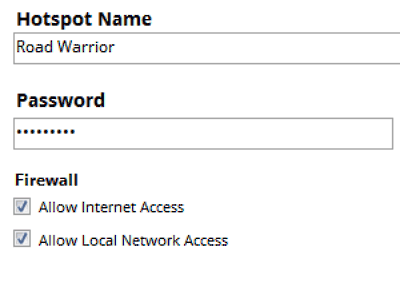
Choose the connection your Windows PC is already using, then set a hotspot name and password.
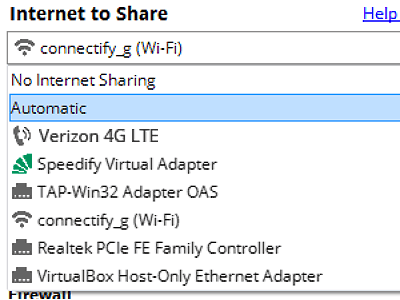
-
Start Hotspot
Your phone, tablet or console now sees the network name you just typed. Connect to that network like any other Wi-Fi.
Available for Windows 10 and 11
Where the Windows Hotspot Stops
Five limits come up over and over in support forums. None of them is a bug; they are consequences of how the feature was built.
- It caps at 8 devices. The hosted network layer it uses imposes this, and no setting exposes it. Past eight, devices simply fail to join with no explanation.
- It switches itself off. When no device has been connected for a few minutes, the hotspot stops. You can turn the power-saving option off, which helps, but adapter power management and modern standby will still take it down.
- It puts your devices on a separate network. Everything connected sits behind the PC on its own address range. This is why a Chromecast connected to a Windows hotspot cannot be found by your phone, and why local multiplayer and printer discovery fail.
- It will not share every connection. Several tethered phones, USB modems and 4G/5G dongles are not offered in the list at all.
- It cannot extend Wi-Fi. It will not rebroadcast the wireless network the PC is currently connected to, so it is no help for a weak signal in a back bedroom, a hotel room or a rental.
What Connectify Hotspot Adds
Connectify Hotspot is a separate application with its own network driver, so it is not bound by the hosted network’s limits. The differences that matter:
- No device cap and no idle timeout: the hotspot runs until you stop it.
- A bridging mode that places connected devices on the same network as the PC, so casting, local discovery and console multiplayer work.
- A repeater mode that rebroadcasts the network the PC is on, which is how a laptop acts as a Wi-Fi booster.
- Wider connection support, including wired Ethernet, tethered phones and cellular dongles.
- Per-device controls: see what each device is using, block any of them individually.
- Ad blocking and VPN sharing for every connected device, including ones that cannot run either themselves.
- It works on Windows 7 and 8, where the built-in hotspot does not exist at all.
Which One Should You Use?
A straightforward way to decide:
- Use the built-in Windows hotspot if you are on Windows 10 or 11, sharing Wi-Fi or Ethernet, with fewer than eight devices that do not need to see each other, for short stretches.
- Use Connectify Hotspot if you have more than eight devices, need it to stay up unattended, need to extend a Wi-Fi signal rather than share a different connection, need connected devices on your main network, are sharing a tethered phone or dongle, or are on Windows 7 or 8.
If you are not sure which category you are in, install the free version and find out in five minutes. It costs nothing and it will not interfere with the Windows one, though you should turn the Windows hotspot off before starting it, since running both at once causes intermittent failures.
Try Connectify Hotspot Before You Decide
The free version does everything except run unattended and use the two top-tier modes, which is more than enough to tell whether it solves your problem. If it does not, you have lost five minutes; if it does, you knew before paying anything.
See for yourself which one fits: get started with Connectify Hotspot today for FREE and compare it against the built-in hotspot on your own setup.
Available for Windows 10 and 11