
Get started with Connectify Hotspot in 60 seconds or less
So you’ve just installed Connectify Hotspot… congratulations! Now it’s time to setup your WiFi hotspot and experience the ‘awesomeness’ of turning your PC into a real Wi-Fi hotspot. Here’s a super quick guide to get you setup – video and steps below:
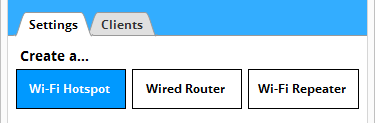
Step 1: On the ‘Settings Tab’ of the Hotspot UI you’ll want to make sure Connectify is setup as wireless hotspot. So click on the ‘Wi-Fi Hotspot’ button.
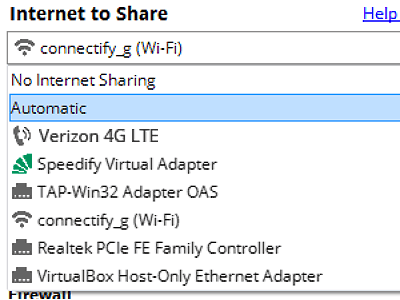
Step 2: In the ‘Internet to Share’ dropdown select the adapter you wish to share. This adapter should have a working connection to the Internet. You can share any type of Internet connection: Wi-Fi, Ethernet (wired) or even via 4G / LTE dongles. If you set it to ‘Automatic’, then Connectify will share the connection to the Internet regardless of which of your adapters is used by your laptop or PC to connect.

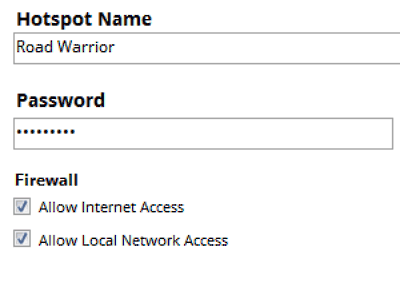
Step 3: Give your hotspot a name (SSID) and password. The hotspot name is the network name that other devices will see and authenticate to using your unique hotspot password. Feel free to have fun while you’re at it and use emojis and Unicode characters in the hotspot name.

Setup · about two minutes
Get Connectify Hotspot running on your Windows PC
Three steps, no command prompt, no netsh commands to remember.
-
Install and open Connectify Hotspot
Run the installer and let the install finish. Connectify Hotspot opens on its own.

-
Pick what you are sharing
Choose the connection your Windows PC is already using, then set a hotspot name and password.
-
Start Hotspot
Your phone, tablet or console now sees the network name you just typed. Connect to that network like any other Wi-Fi.
Available for Windows 10 and 11
Step 4: Be sure to have the ‘Ad blocker’ box checked in order to benefit from our universal ad blocker that saves you bandwidth, time, money and battery life. Double check that you have everything configured correctly. Then you can click the ‘Start Hotspot’ button to begin sharing your Internet connection with your Wi-Fi enabled devices.
That’s all there is to it! With just a few clicks you can get smartphones, tablets, laptops, and any other Wi-Fi enabled devices online with Connectify Hotspot running on your PC. Download Connectify Hotspot for FREE now – no email sign-up necessary!
Free, PRO or MAX
Which version of Connectify Hotspot you need
The free version of Connectify Hotspot covers the setup in this guide. The only limit you will hit is the 60-minute session, and restarting the session takes one click.
Recommended: MAX adds Connectify Hotspot's Repeater Mode and Bridging Mode, which is what most people come back for later.
Available for Windows 10 and 11