

Introducing the Connectify Hotspot 2018.4.1 Bug Fix 1
We are proud to announce the release of Connectify 2018.4.1.
- We are continuing to improve Connectify to protect your privacy. Crash reports to Raygun are now completely anonymized.
- Previously, crash reports contained your computer hostname, and, in some cases, your email address. Both of these have been removed from the reports, and we have confirmed that your IP address is not (and has not been) included in reports.
- No personal information is sent with the crash reports anymore. The privacy policy has been updated to reflect this change.
We suggest that everyone should update immediately: Download here.
Setup · about two minutes
Get Connectify Hotspot running on your Windows PC
Three steps, no command prompt, no netsh commands to remember.
-
Install and open Connectify Hotspot
Run the installer and let the install finish. Connectify Hotspot opens on its own.

-
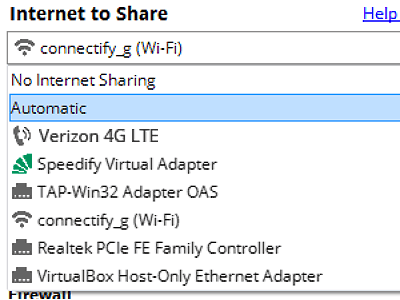
Pick what you are sharing
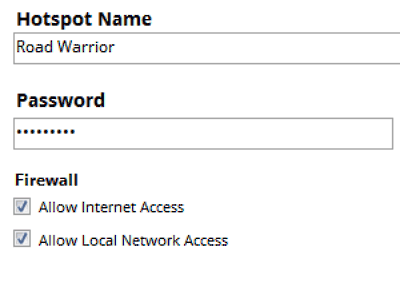
Choose the connection your Windows PC is already using, then set a hotspot name and password.
-
Start Hotspot
Your phone, tablet or console now sees the network name you just typed. Connect to that network like any other Wi-Fi.
Download Connectify Hotspot
Available for Windows 10 and 11
Download Connectify Hotspot
Available for Windows 10 and 11