

QR Code Support for Phones Joining Hotspot Now Available
Introducing Connectify Hotspot 2020.1 – the latest and the greatest of our virtual router software app for Windows.
Here’s what’s new:
- QR Code support: Just scan the QR code to have your Android smartphone or iPhone join the hotspot without having to log in or type passwords. See more details in our knowledge base article here.
- Fixes for various minor user interface issues around Dark Mode.
- The DNS server now uses the system hosts file for overrides of domain names.
Setup · about two minutes
Get Connectify Hotspot running on your Windows PC
Three steps, no command prompt, no netsh commands to remember.
-
Install and open Connectify Hotspot
Run the installer and let the install finish. Connectify Hotspot opens on its own.

-
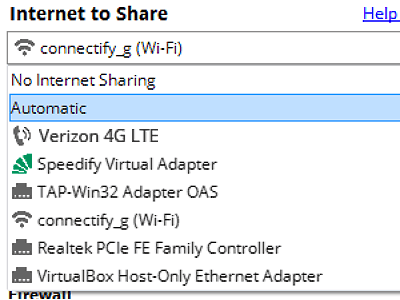
Pick what you are sharing
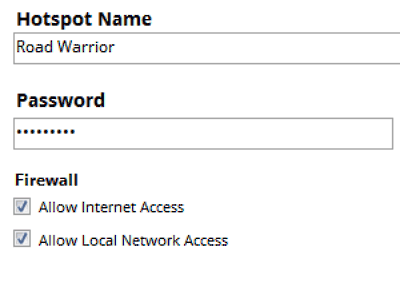
Choose the connection your Windows PC is already using, then set a hotspot name and password.
-
Start Hotspot
Your phone, tablet or console now sees the network name you just typed. Connect to that network like any other Wi-Fi.
Download Connectify Hotspot
Available for Windows 10 and 11
To benefit from all these new features, make sure you update Connectify Hotspot on your Windows PC.
Download Connectify Hotspot
Available for Windows 10 and 11