
Wireless Ethernet Adapters: Get Your Ethernet-only Gadgets Connected to Your Home Network
There are (and will still exist) some home or office devices that will not be able to connect directly to the Internet through a WiFi connection: smart TVs, media players, (older) game consoles are just a few examples of devices that need a wired Ethernet connection to the Internet.
Naturally, if you’ve got your home or office wired from a router to each device’s location, then it’s simple to plug the Ethernet cable in. But, what if you don’t have Ethernet cables going where you need them? Since you have a WiFi connection, you need a WiFi to Ethernet adapter, so that your smart TV or media device can use that connection to access the Internet.
Read below to see how to turn your own laptop into a fast and convenient WiFi to Ethernet adapter with the Connectify Hotspot software app.
Wired in, Wi-Fi out
No router? Connectify Hotspot makes your Windows PC the router.
A Windows PC with a working connection already has everything a router has. Connectify Hotspot takes the connection coming in over the cable and hands out a Wi-Fi network your other devices can join.
Wired in Wi-Fi out
-
At the office
A desk with a network port and no wireless you are allowed to join. The Windows PC on that port can put your phone on the same connection.
-
In a hotel room
Older rooms still have an Ethernet socket behind the desk and little else. One cable covers everything you travelled with.
-
At home
A modem with no Wi-Fi built in. The Windows PC already plugged into that modem can hand out a network to the rest of the house.
Available for Windows 10 and 11
If the setup becomes something you use daily rather than once, Connectify Hotspot PRO drops the 60-minute session limit.
5 Steps to Turn Your Laptop into a Wireless WiFi to Ethernet Adapter and Share Internet
Forget about planning to run wires under the carpets or near the edge of the room to connect your Ethernet-only device to Internet. No need to buy hardware devices, such as dedicated WiFi to Ethernet adapters or additional routers to configure them as bridges. All you need to get the best WiFi to Ethernet adapter is your laptop equipped with a software program for Windows: Connectify Hotspot.
Connectify Hotspot PRO can turn your computer into a wired Ethernet router. This lets you share any Internet connection, including WiFi and 3G/4G with an Ethernet only device. Here are 5 steps to turn your laptop into a WiFi to Ethernet adapter:
- Install Connectify Hotspot on your Windows PC or laptop and purchase either Connectify Hotspot PRO or MAX here with a 70% discount!
- Run the program and click on the Wired Router button in the interface.
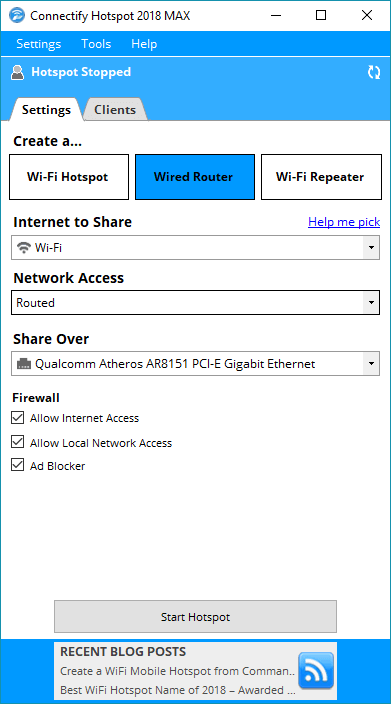
- Under ‘Internet to Share’ – select your wireless adapter – WiFi or 3G/4G.
- Under ‘Share Over’ – select your Ethernet adapter.
- Click to Start Hotspot.
Connectify Hotspot – More Than Just a Wireless Ethernet Adapter, a True Virtual Router Software
Connectify Hotspot is an easy-to-use virtual router program that lets you share Internet from your laptop, PC or tablet with your smartphone, media player, game console, e-reader, other laptops and tablets, and even your nearby friends. Whether you’re traveling, at home, or just working from a coffee shop, Connectify Hotspot keeps you connected anytime and anywhere.
Along with the mobile hotspot functionality, here are other benefits for users of Connectify Hotspot:
- Boost Your Range Instantly with WiFi Repeater Mode: Easily extend the range of your existing WiFi network!
- Easily bridge other devices onto your home network with WiFi Bridging Mode: eliminate all game consoles (Nintendo, Playstation, Xbox) and smart TV issues with your home WiFi network!
- Save Money While Traveling: Get all devices online for the price of one when being charged for Internet per device at hotels, on airplanes, etc.
- Share any Type of Internet Connection with All your Devices: share Internet from existing WiFi networks, LAN, DSL, 3G/4G, even tethered smartphones!
Free, PRO or MAX
Which version of Connectify Hotspot you need
The free version of Connectify Hotspot covers the setup in this guide. The only limit you will hit is the 60-minute session, and restarting the session takes one click.
Recommended: MAX adds Connectify Hotspot's Repeater Mode and Bridging Mode, which is what most people come back for later.
Available for Windows 10 and 11