

Get the Easiest Fix If You Can’t Connect to a Windows 10 Mobile Hotspot
Running Windows 10 on your PC or laptop and need a quick way to share Internet with other devices? Windows’ own mobile hotspot functionality may be what you’re looking for. But it’s possible you can’t turn on the WiFi mobile hotspot with a message like “We can’t setup mobile hotspot on your Windows 10 PC”.
A recent example is Microsoft’s mid October 2017 launch of its Fall Creators Update. Many users saw their mobile hotspot functionality in Windows 10 stop working correctly.
This includes situations where you can’t connect to a Windows 10 mobile hotspot you created from your phone or other WiFi enabled device. You need to troubleshoot the issue. It can be something simple, related to your PC broadcasting on 5 GHz and your client devices not being compatible with that. Or something more complex that involves trying on various drivers, for example. This takes time and it’s not guaranteed that the issue will be solved.
Read below to see what you should do when you can’t connect to a Windows 10 mobile hotspot.
Can’t Connect to Mobile Hotspot Windows 10? Here’s a Guide to Fix That!
Connectify Hotspot is an easy-to-use virtual router software that lets you share Internet from your laptop, PC or tablet. Connect your smartphone, media player, game console, e-reader, other laptops and tablets. Whether you’re traveling, at home, or just working from a coffee shop, Connectify Hotspot keeps you connected anytime and anywhere.
When you can’t connect to a Windows 10 mobile hotspot, you should use Connectify Hotspot instead on your PC:
- Download and install the latest version of Connectify Hotspot on your PC or laptop. It’s FREE to use!
- Give your Hotspot a Name (SSID) and Password. You can even add emojis and special characters to your hotspot name!
- Press the ‘Start Hotspot’ button to share your Internet connection.
Make sure you have the ad blocker option selected, to save bandwidth, money and battery life. - Connect your devices. Any WiFi enabled devices can connect to your Hotspot!
Below you can find a short video on how you can create a mobile hotspot on Windows 10 with Connectify Hotspot:
Setup · about two minutes
Get Connectify Hotspot running on your Windows PC
Three steps, no command prompt, no netsh commands to remember.
-
Install and open Connectify Hotspot
Run the installer and let the install finish. Connectify Hotspot opens on its own.

-
Pick what you are sharing
Choose the connection your Windows PC is already using, then set a hotspot name and password.
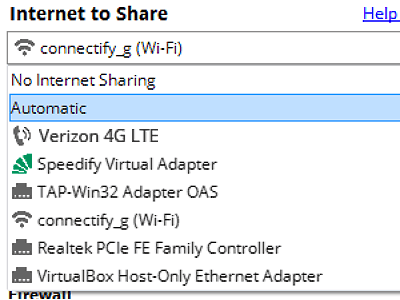
-
Start Hotspot
Your phone, tablet or console now sees the network name you just typed. Connect to that network like any other Wi-Fi.
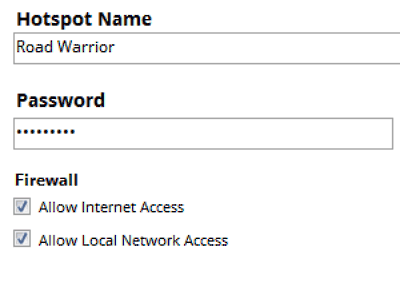
Available for Windows 10 and 11
Connectify Hotspot Fixes All Mobile Hotspot Not Working Issues in Windows 10, Also Delivers More!
Most software apps that ‘help’ you create a WiFi hotspot do it without bridging. This means that clients that join your hotspot don’t get real IP addresses from the network they’re extending. They can get on the Internet through the hotspot, but they’re not really on the network to do any peer-to-peer networking:
- Game consoles will report NAT problems,
- Chromecast apps won’t find your Chromecast,
- your Apple TV won’t show up for your Mac to stream to… the list goes on.
Connectify Hotspot is the most popular virtual router software. It has a solid WiFi booster functionality which helps you extend WiFi range outside. You also get many other functionalities, such as:
- Mobile hotspot functionality: turn your laptop into a WiFi hotspot with the only software app that works on all Windows versions!
- Easily bridge other devices onto your home network with WiFi Bridging Mode: eliminate all game consoles (Nintendo, Playstation, Xbox) and smart TV issues with your home WiFi network!
- Save money while traveling: Get all devices online for the price of one when being charged for Internet per device at hotels, on airplanes, etc.
- Share any type of Internet connection with all your devices: share Internet from existing WiFi networks, LAN, DSL, 3G/4G, even tethered smartphones! You can even share VPN connections via WiFi so all your devices are protected.
Download Connectify Hotspot on your laptop for free. This way, the “can’t connect to a Windows 10 mobile hotspot” issue will be history!
Free, PRO or MAX
Which version of Connectify Hotspot you need
The free version of Connectify Hotspot covers the setup in this guide. The only limit you will hit is the 60-minute session, and restarting the session takes one click.
Recommended: MAX adds Connectify Hotspot's Repeater Mode and Bridging Mode, which is what most people come back for later.
Available for Windows 10 and 11